Connecting Integrations
Step-by-step guide to connecting your first integration and starting automated evidence collection.
Prerequisites
To connect integrations, you will need Admin or Owner permissions in Imara, as well as administrative access to the tool you want to connect (e.g., AWS administrator account or Google Workspace admin).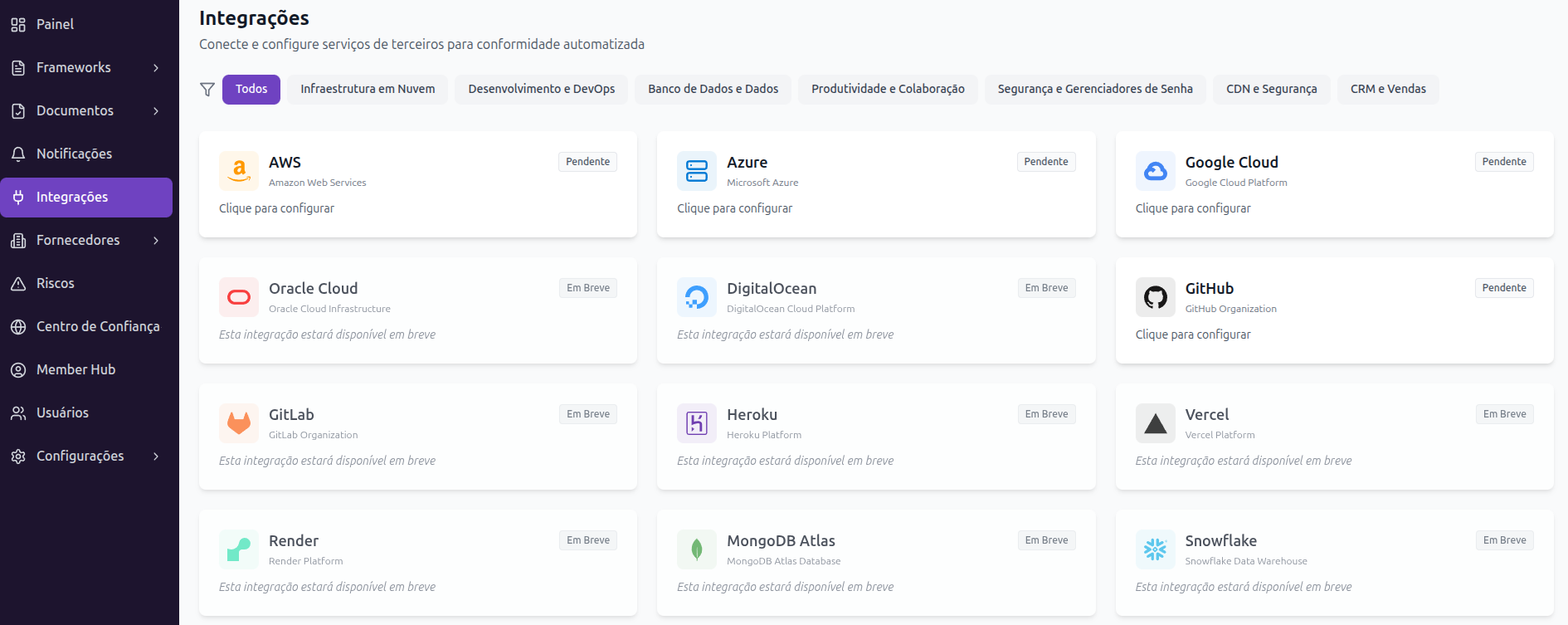
How to Connect an Integration
- Go to the Integrations section in the side menu.
- Click Add Integration and select the desired tool from the catalog.
- Review the permissions that will be requested — Imara lists exactly which access scopes are needed and why.
- Click Connect and complete the OAuth authorization flow (you will be redirected to the tool and back to Imara after authorizing).
- Wait for the initial sync — Imara will perform the first data collection within a few minutes.
Verifying the Connection
After connecting, the integration will appear in the list with Active status and the last sync date. Click on the integration to see:
- What evidence was collected
- Which controls were automatically linked
- The sync history
- Failure alerts, if any
Reauthorization
OAuth tokens expire periodically. When this happens, Imara notifies administrators to reauthorize the integration. This process is simple and follows the same flow as the initial connection.
Disconnecting an Integration
To disconnect an integration, go to its settings page and click Disconnect. This revokes Imara's access to the tool and stops automatic evidence collection. Previously collected evidence remains in the repository.